
Edit Automatic Captions in Panopto
To support equitable access, all video materials used in your course must include captions that are available to students when viewing independently. Please review captions in your Panopto recordings and other materials to ensure they are clear, complete, and accurate.
Faculty Responsibility
While Panopto’s automatic captions are a helpful starting point and may bring accuracy close to 90%, they do not typically meet ADA expectations for caption accuracy (approximately 99%). If a student with a disability is relying on accurate captions for a complete understanding of the course material, the lack of caption accuracy can pose inequitable challenges.
To help support equal access, faculty are responsible for reviewing and editing automated captions to ensure accuracy and completeness before sharing content with students.
Editing Captions
1. Log into MSU's Panopto site with your NetID and password.
2. Navigate to the video you want to edit in Panopto, hover over the video thumbnail,
and click on the Edit icon.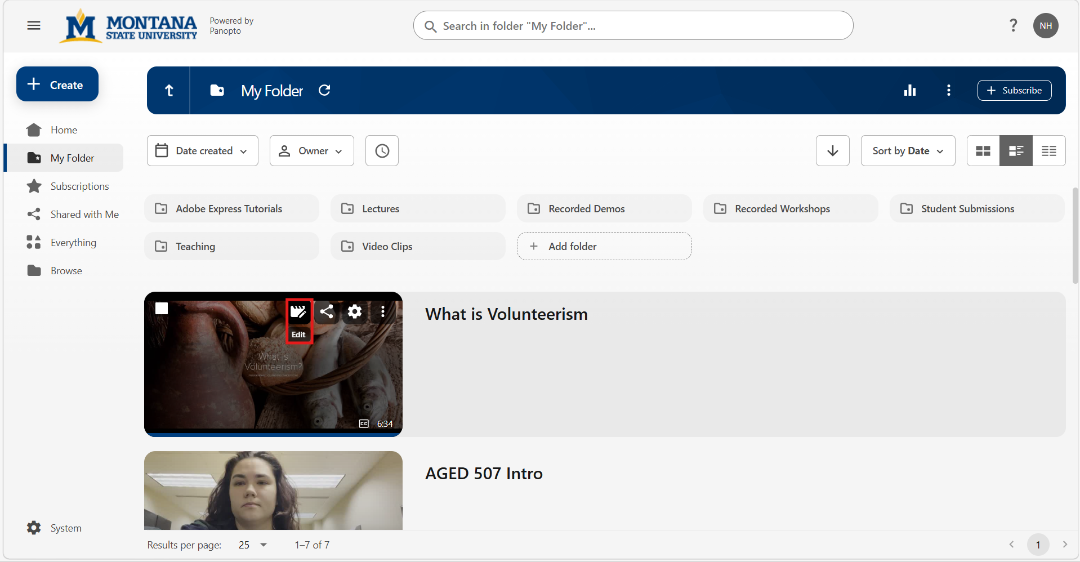
3. In the editor, click on the Captions tab in the editing menu on the upper left corner of your screen. This will display the
automatic captions that are added to all videos in Panopto.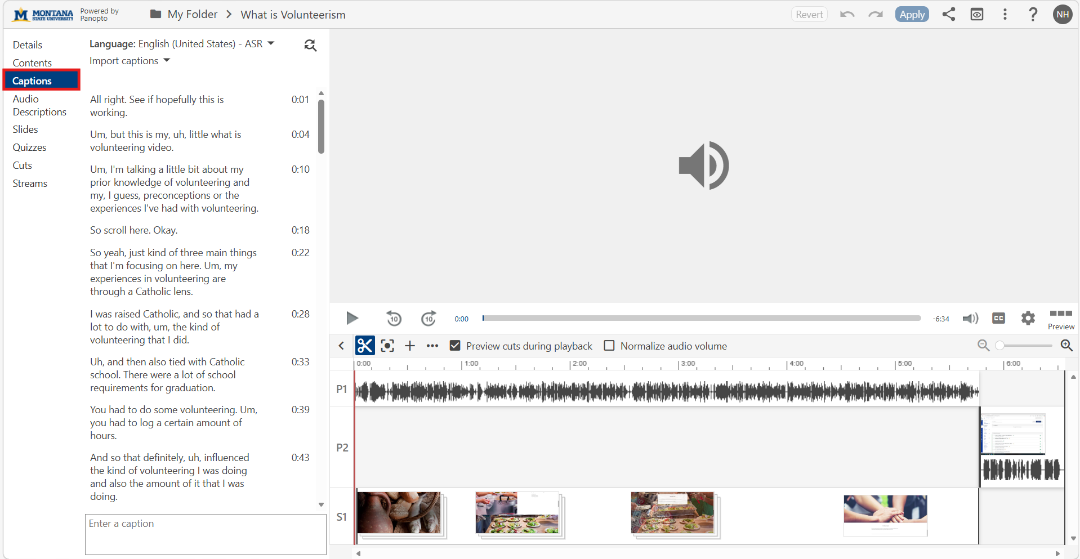
4. Review and edit your captions. Edit for:
- Accuracy of words and technical terminology
- Speaker clarity and identification
- Punctuation and readability
- Non-speech elements (when relevent) such as "Laughter," "Music playing," "Applause"
For more guidance on editing captions, visit the Section508 website.
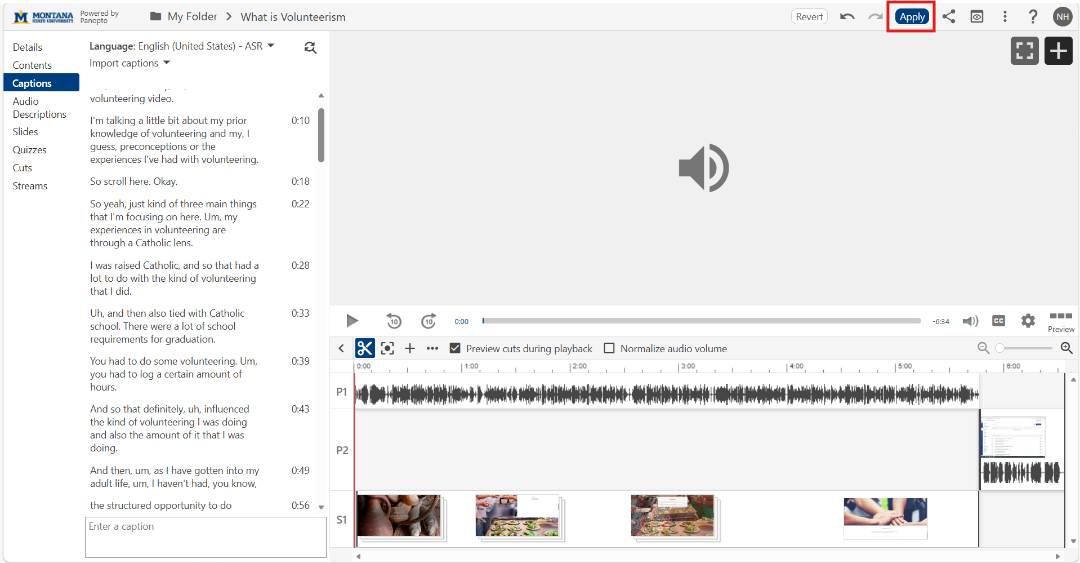
5. When you are finished editing your captions, click Apply in the top right corner of the video editor to save your changes.